Join us on the Community Forums!
-
Community Guidelines
The Fitbit Community is a gathering place for real people who wish to exchange ideas, solutions, tips, techniques, and insight about the Fitbit products and services they love. By joining our Community, you agree to uphold these guidelines, so please take a moment to look them over. -
Learn the Basics
Check out our Frequently Asked Questions page for information on Community features, and tips to make the most of your time here. -
Join the Community!
Join an existing conversation, or start a new thread to ask your question. Creating your account is completely free, and takes about a minute.
Not finding your answer on the Community Forums?
- Community
- Developers
- SDK Development
- Re: How do I copy console log perfectly from Fitbi...
- Mark Topic as New
- Mark Topic as Read
- Float this Topic for Current User
- Bookmark
- Subscribe
- Mute
- Printer Friendly Page
- Community
- Developers
- SDK Development
- Re: How do I copy console log perfectly from Fitbi...
How do I copy console log perfectly from Fitbit Studio?
ANSWERED- Mark Topic as New
- Mark Topic as Read
- Float this Topic for Current User
- Bookmark
- Subscribe
- Mute
- Printer Friendly Page

Hi! I just want to use Fitbit Versa to collect some sensors' data for data analyzing on PC. I knew that I can just use console.log() to print it on the console. But Fitbit Studio is in Browser and it is quite hard to copy them. For example, I can only find "Clear logs" on the right-click menu, nothing like "export" or "copy to clipboard". If I just use ctrl+c and ctrl+v, which works to some degree, misalignment between two lines may happen so that the data will be wrong. And I can only do ctrl+c on the current window, first few lines will not be selected if I use the scrollbar to select more console log. So is there any way to solve it?
(I tried to let the device communicate with my companion and copy the console log from my phone. But synchronize is always a problem. I can not get my console log...)
Answered! Go to the Best Answer.
Accepted Solutions


 Fitbit Developers oversee the SDK and API forums. We're here to answer questions about Fitbit developer tools, assist with projects, and make sure your voice is heard by the development team.
I don't think it's possible in studio. Perhaps try the command-line tools instead?
 Best Answer
Fitbit Developers oversee the SDK and API forums. We're here to answer questions about Fitbit developer tools, assist with projects, and make sure your voice is heard by the development team.
Best Answer
Fitbit Developers oversee the SDK and API forums. We're here to answer questions about Fitbit developer tools, assist with projects, and make sure your voice is heard by the development team.
I don't think it's possible in studio. Perhaps try the command-line tools instead?
Best Answer
Yeah, I tried CLI and it worked! Thank you very much!😀
Best Answer
sorry for being late
could you tell me what CLI is about?
I am struggling with the same problem
Best Answer
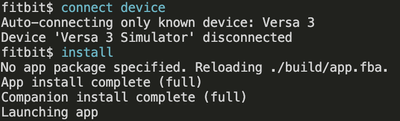
CLI is command line interface. You can refer to this page
https://dev.fitbit.com/build/guides/command-line-interface/
you can just copy from a shell and paste them on another file to get the data
Best Answer
Thank you for this!
I successfully install CLI, and indeed it feel better to save the output log.
Is that "copy and paste" the only way to get log? Or there is another single command to save the output log into a file?
Best Answer
I know somebody has managed to capture the log using output redirection.
If you use something like Visual Studio Code, you can also manipulate the output log in that.
Gondwana Software
I am not so sure. But this is the most straightforward approach so far I used. Although it indeed feels a little bit stupid... 🙂
Best Answer